How to Use the Canva App in Quickpage
Design graphics in Canva and publish them straight onto a Quickpage, without exporting and re-uploading a single file.
So, did you know you can use Canva inside of your Quickpage account? It’s super easy and super fun to update your slider thumbnails with engaging graphics using our fully integrated Canva integration.

What is Canva App?
Canva is a graphic design platform that makes designing graphics easy for anyone who are non-graphic designers to be able to create beautiful and compelling images and visuals in just minutes.
2 places you can create a Canva graphic inside of Quickpage
Media slider
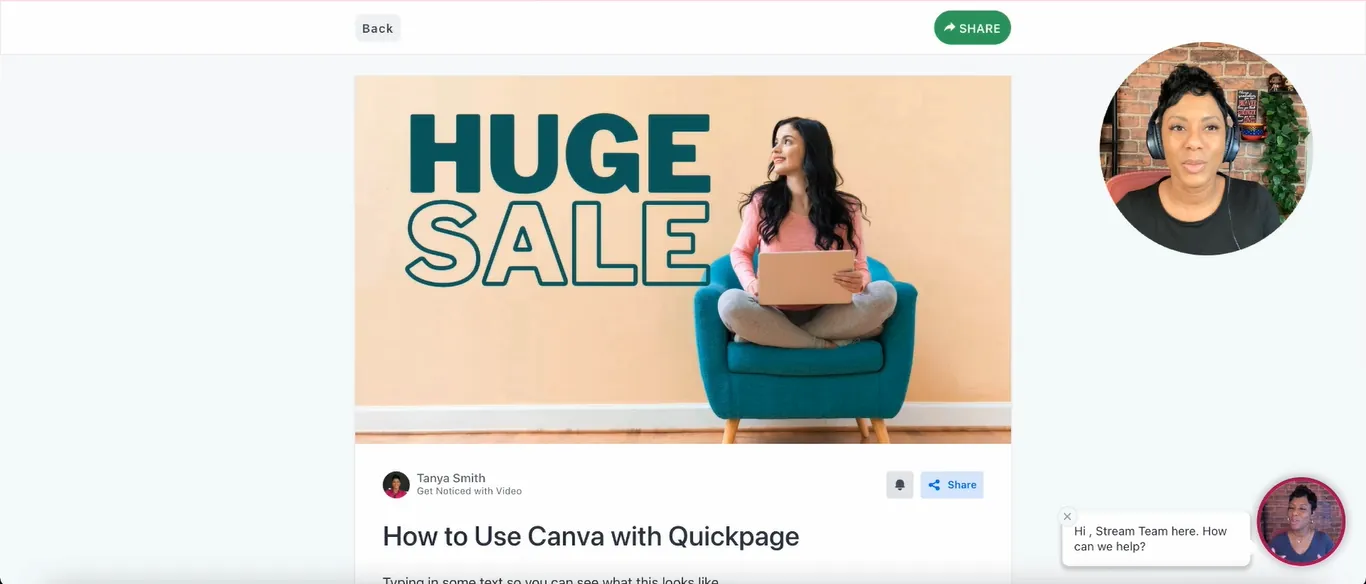
Page Body
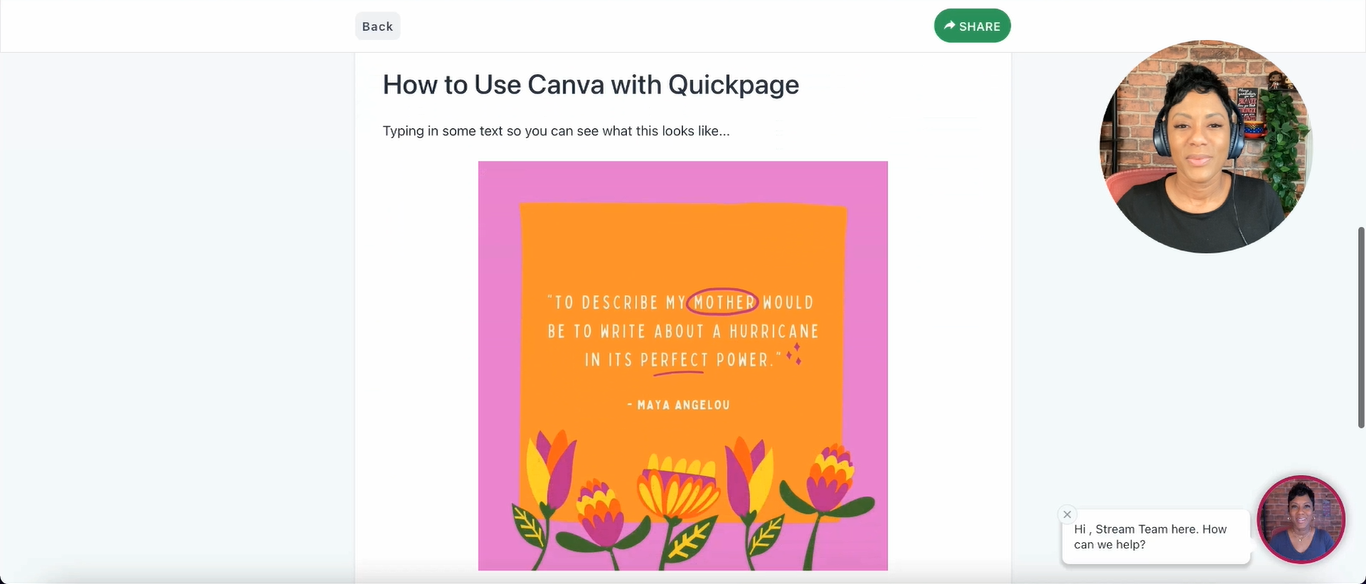
I. Creating a Canva in the media slider
-
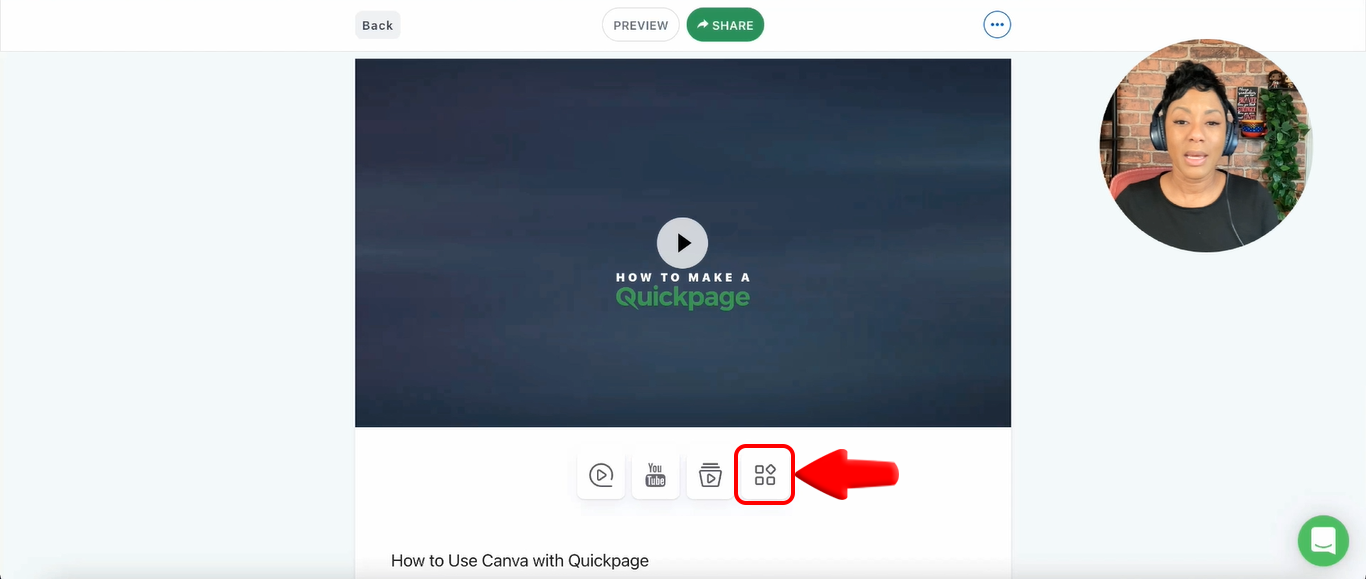
Click the 4th button in the toolbar (More Options Button)
-
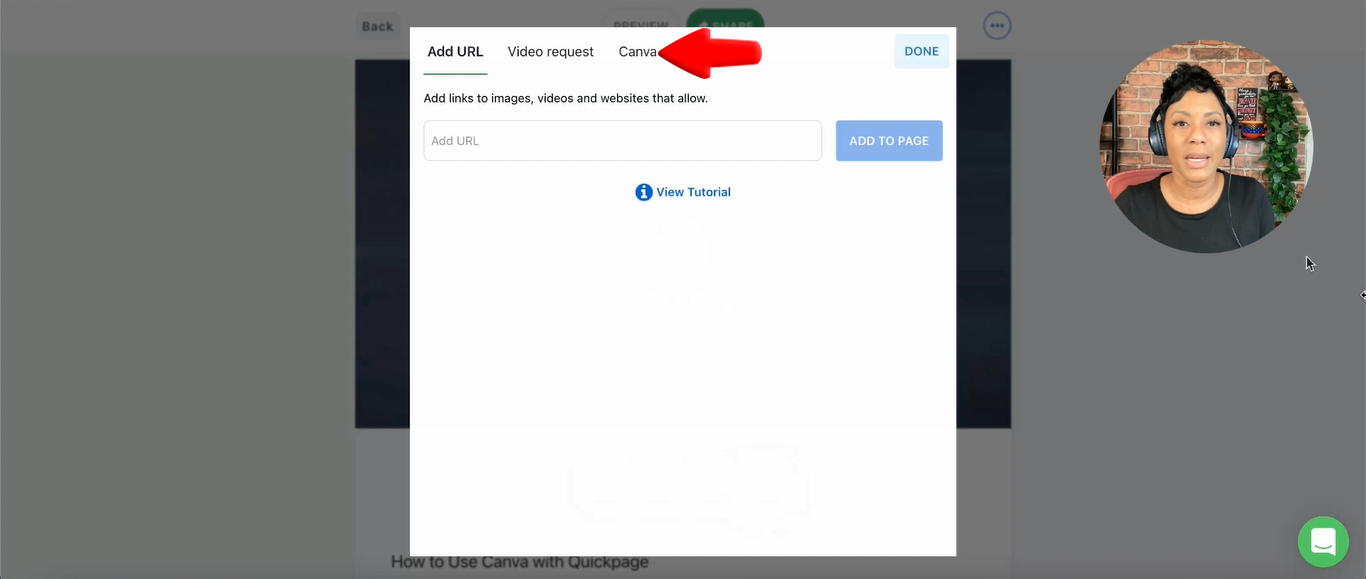
Click Canva
-
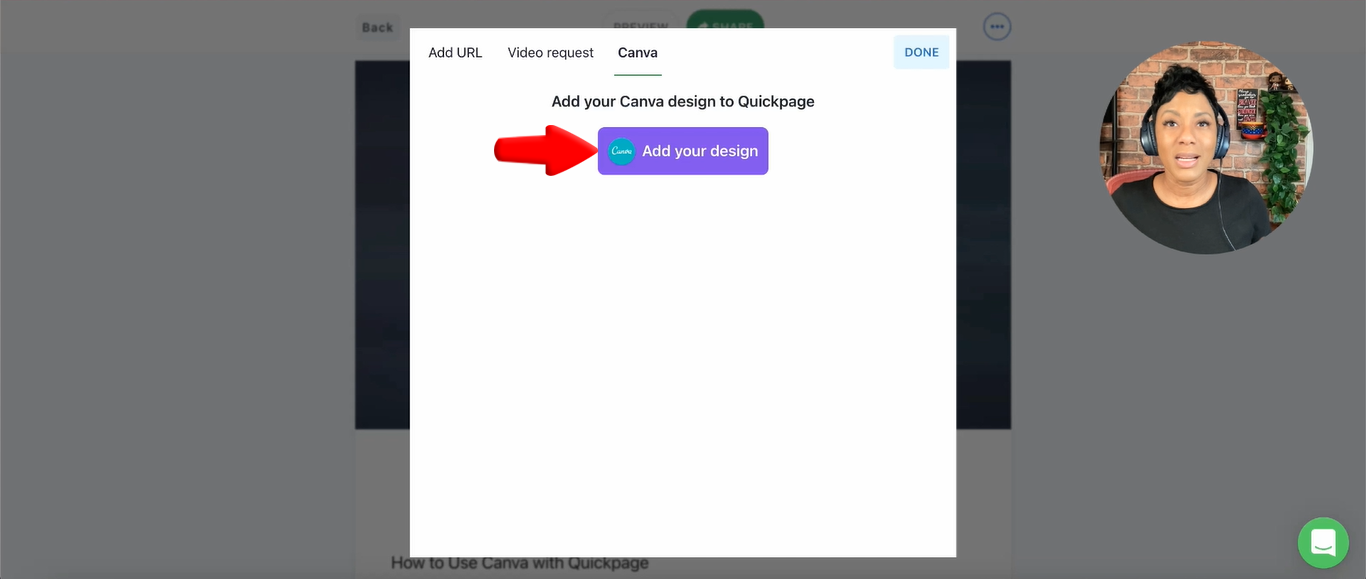
Click Add your design
-
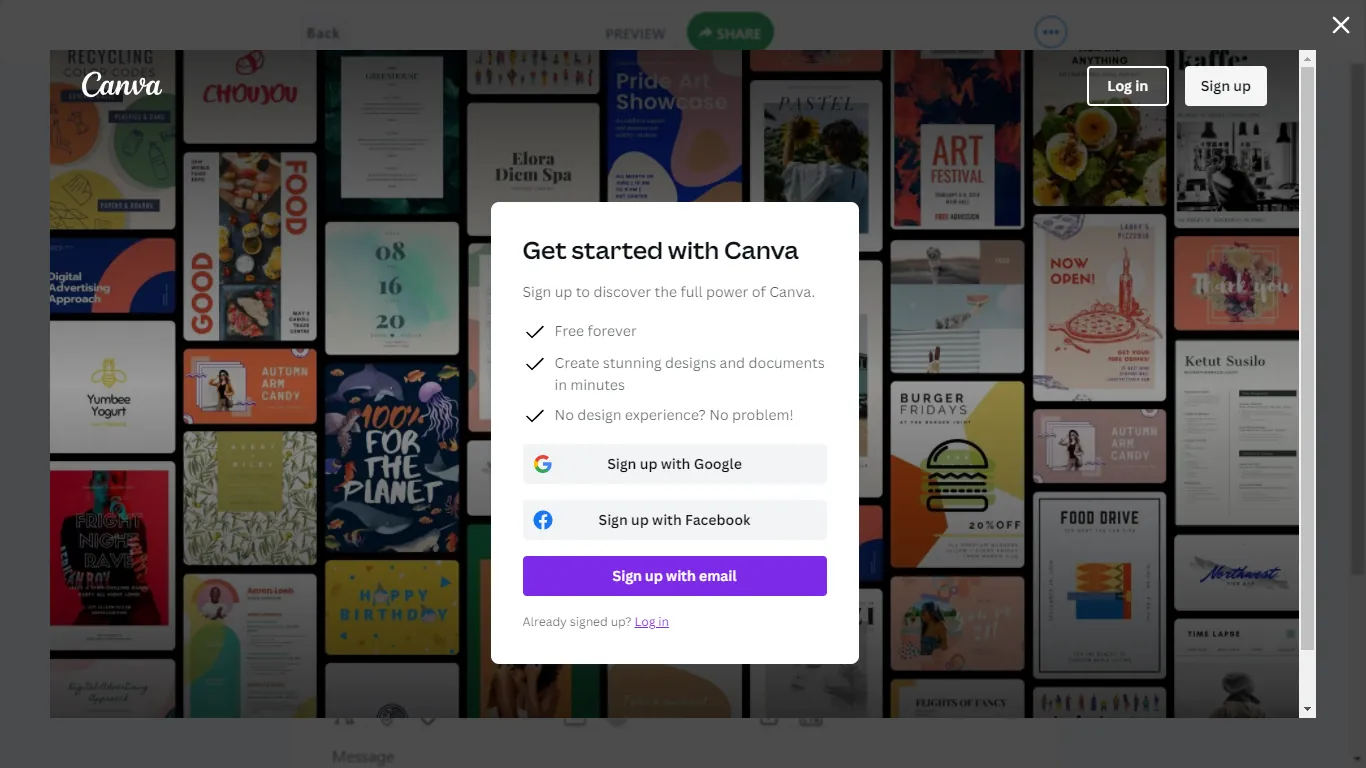
Log in your account in Canva (If you’re already logged in, it will automatically proceed to the designing page)
-
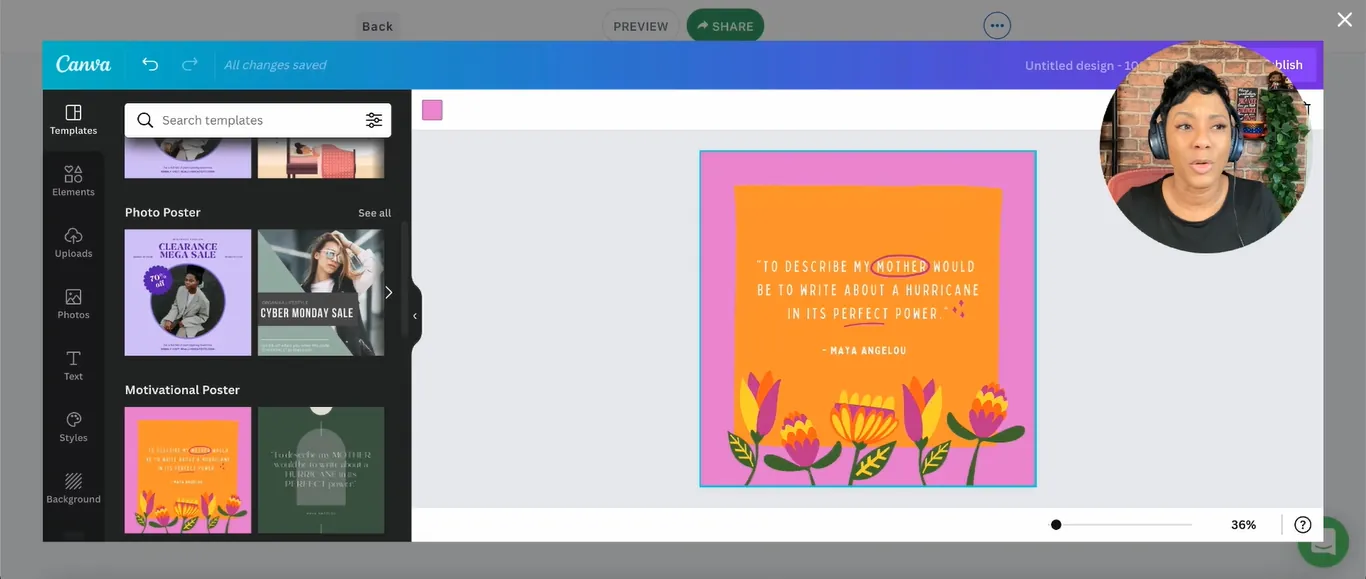
Design your Canva
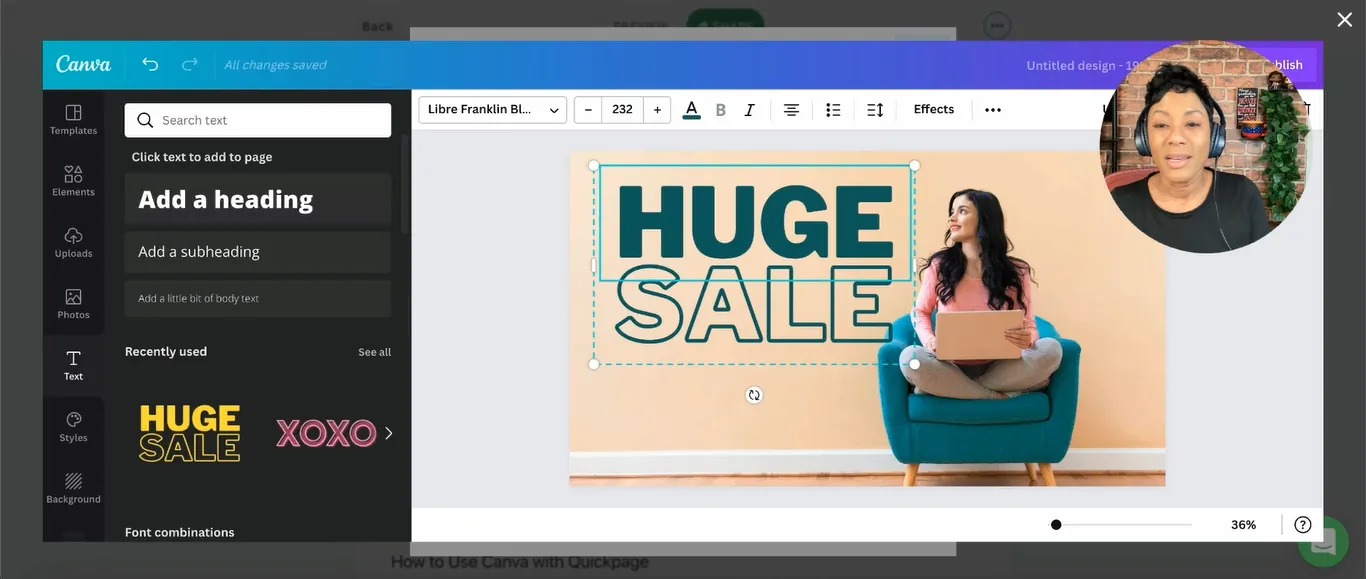
-
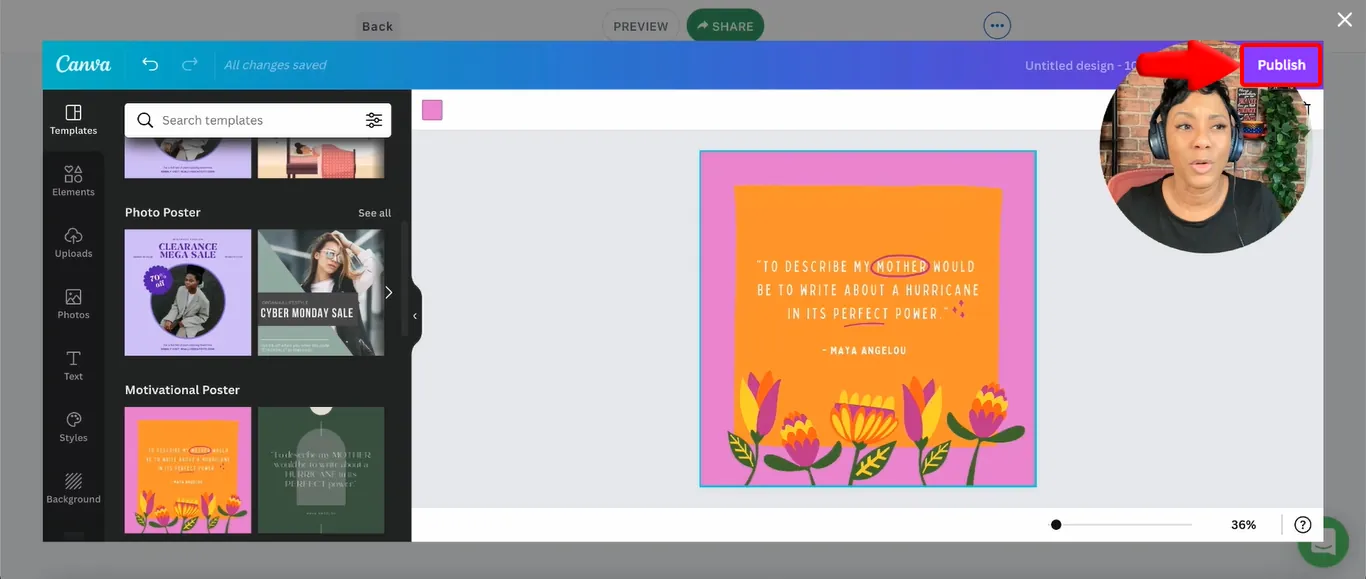
Click Publish
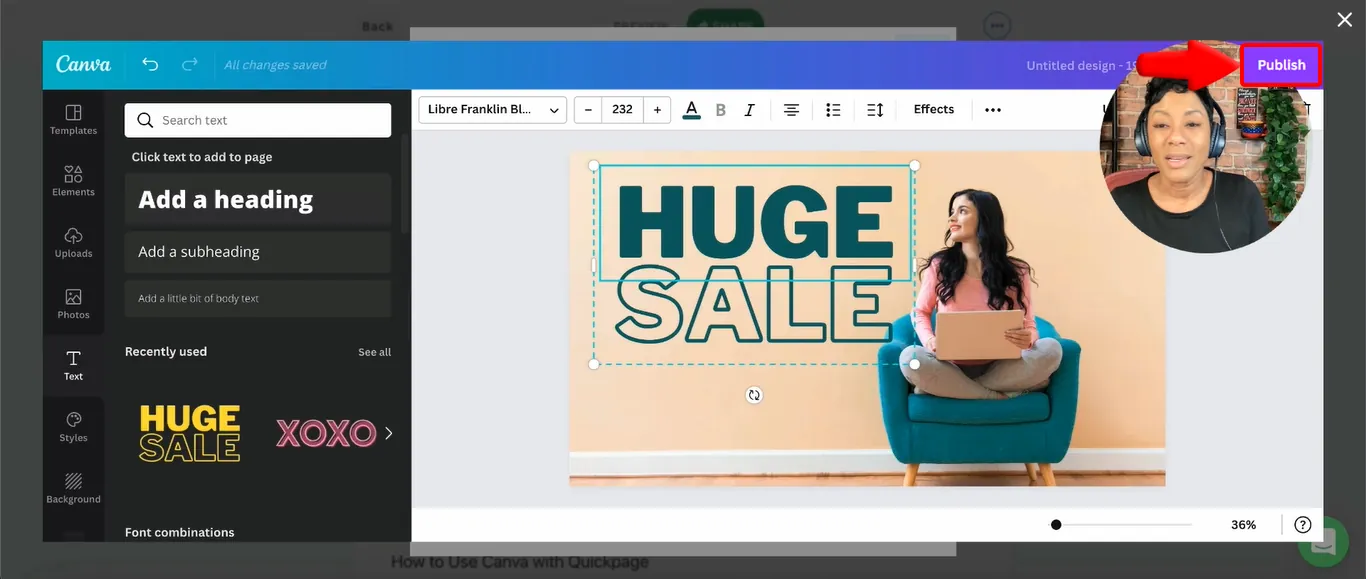
Creating a Canva in Page Body
-
Click the Canva button
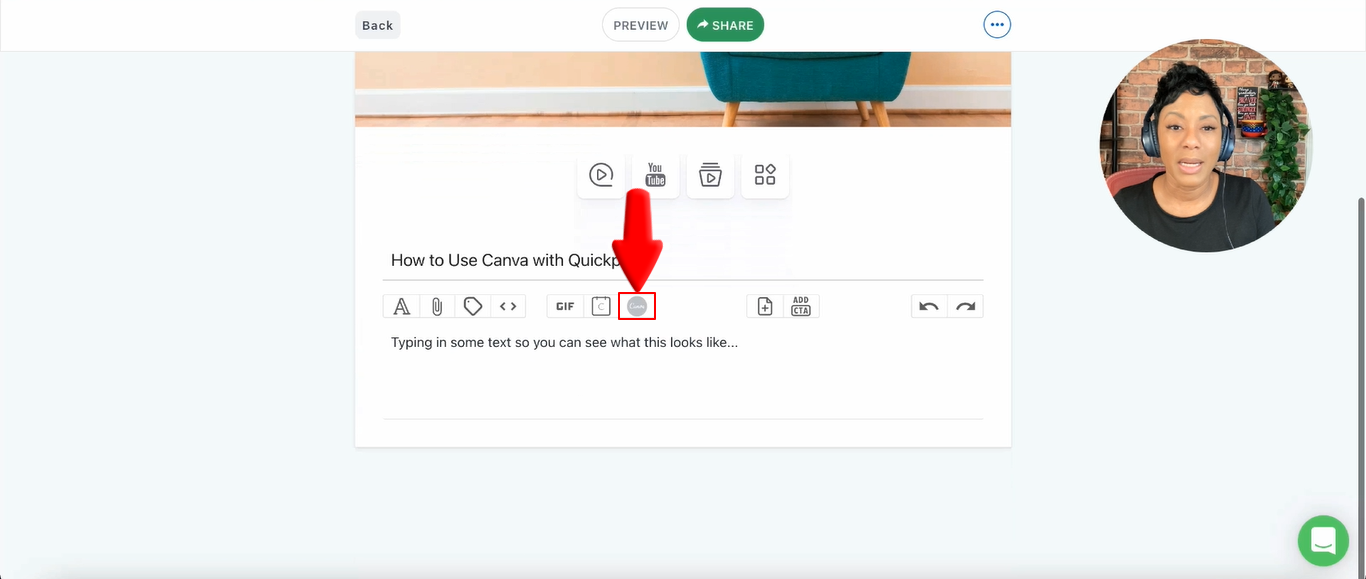
-
Log in your account in Canva (If you’re already logged in, it will automatically proceed to the designing page)
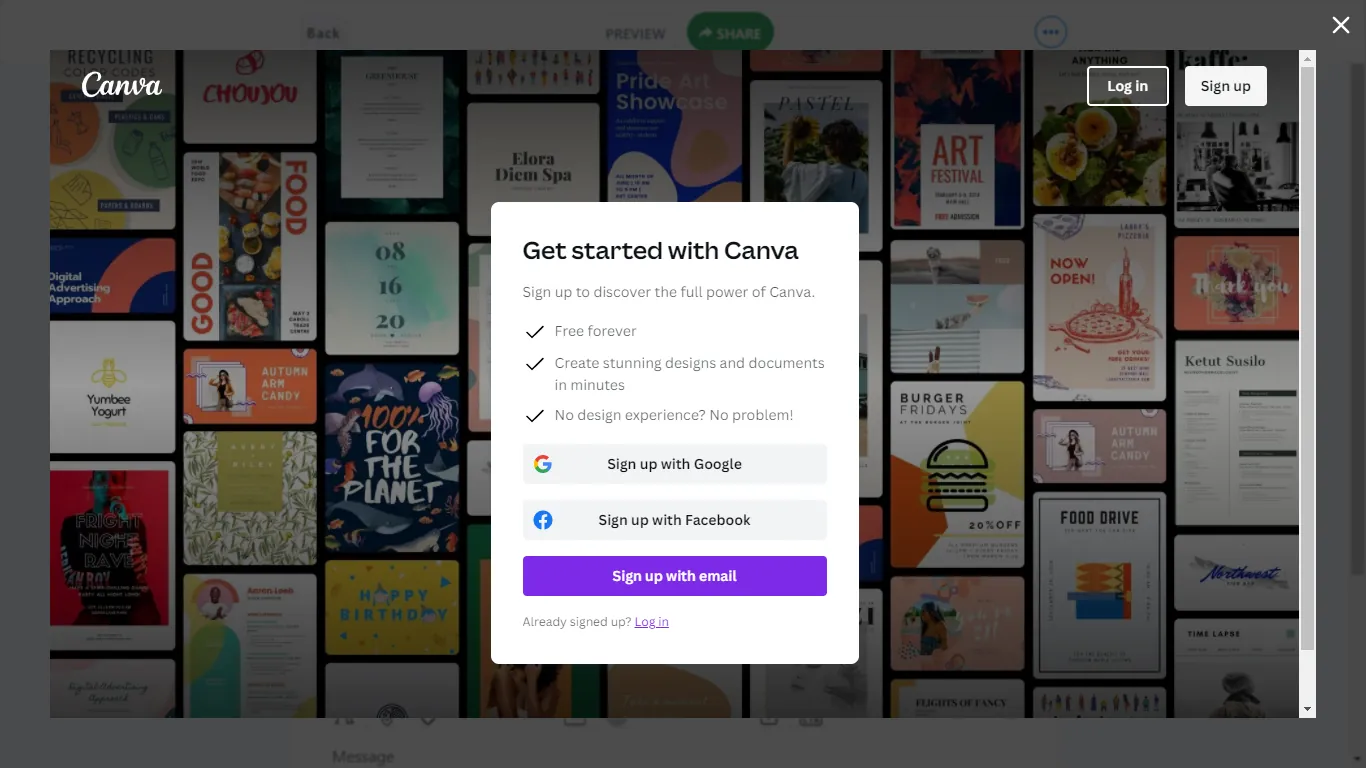
-
Design your Canva
-
Click Publish
Look how easy that was. I hope you’ll have fun playing around with this. If you are not currently a Quickpage user, sign up for free right here.
- how-to
- canva
- design
See it on your own follow-up
Twenty minutes with someone who has rolled this out to teams like yours, against your own follow-up process.